

Using the RHNTC Website to Track Your Training Completion Job Aid


The web-based RHNTC Training Tracking System allows you to track your completion of both rhntc.org trainings and other trainings.
The person responsible for creating professional development plans at your organization may share a training list with you to complete. Follow the steps below to complete assigned training lists and track your training progress.
- Save a training list assigned to you
In most cases, the person responsible for your professional development will email you a training list link. When you save a training list, the person who created the list can see when you complete a training from that list and when you complete the entire training list.
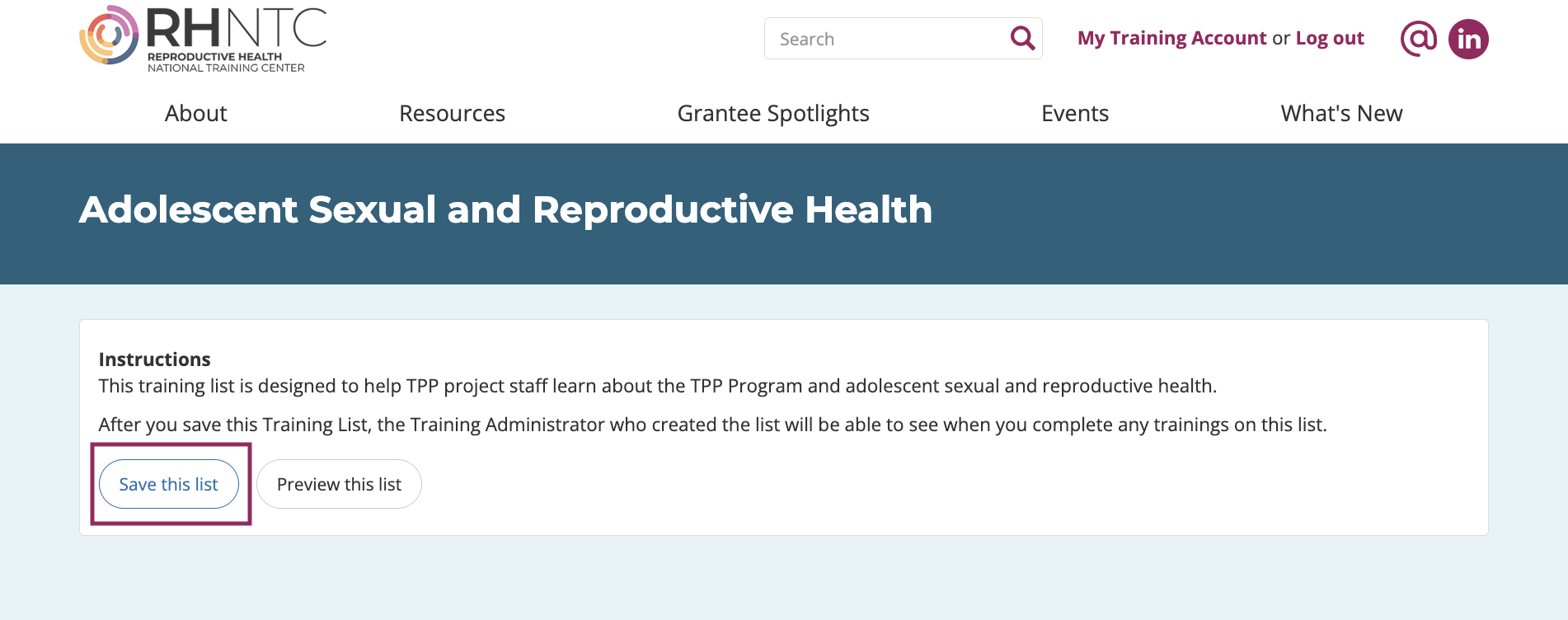
- Click the training list link. This will bring you to the RHNTC webpage for that training list.
- Click the Save this list button. If you’re not already logged in, a login screen will appear.
- Log into your RHNTC training account or create an account if you don’t already have one. Logging in is necessary in order to save a training list.
- Once logged in, again click the Save this list button. “You have saved this training list” will appear at the top of the screen.
- View a saved training list
You typically won’t complete a training list in one sitting. You can easily go back to view a saved training list and work your way through the trainings within it.
- Log into your RHNTC account.
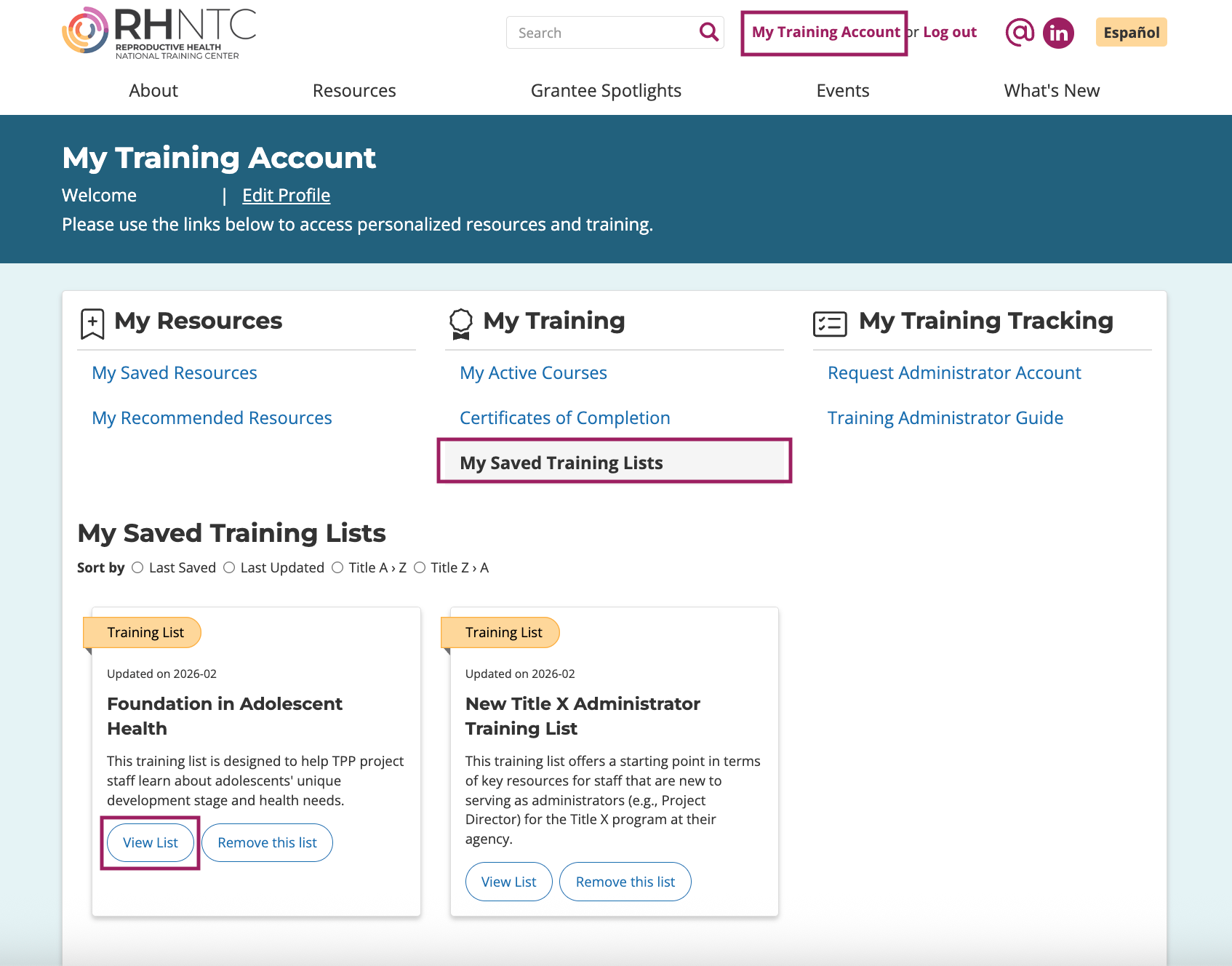
- Click My Training Account in the upper right hand corner of the window.
- To see all of your saved training lists, click the My Saved Training Lists link under the My Training heading.
- To see the items within a particular training list, click View List.
- Complete an assigned training list
You may be required to complete some training lists on a particular timeline while others may be more flexible. If needed, check with the person who assigned you a training list about expectations for when to complete it.
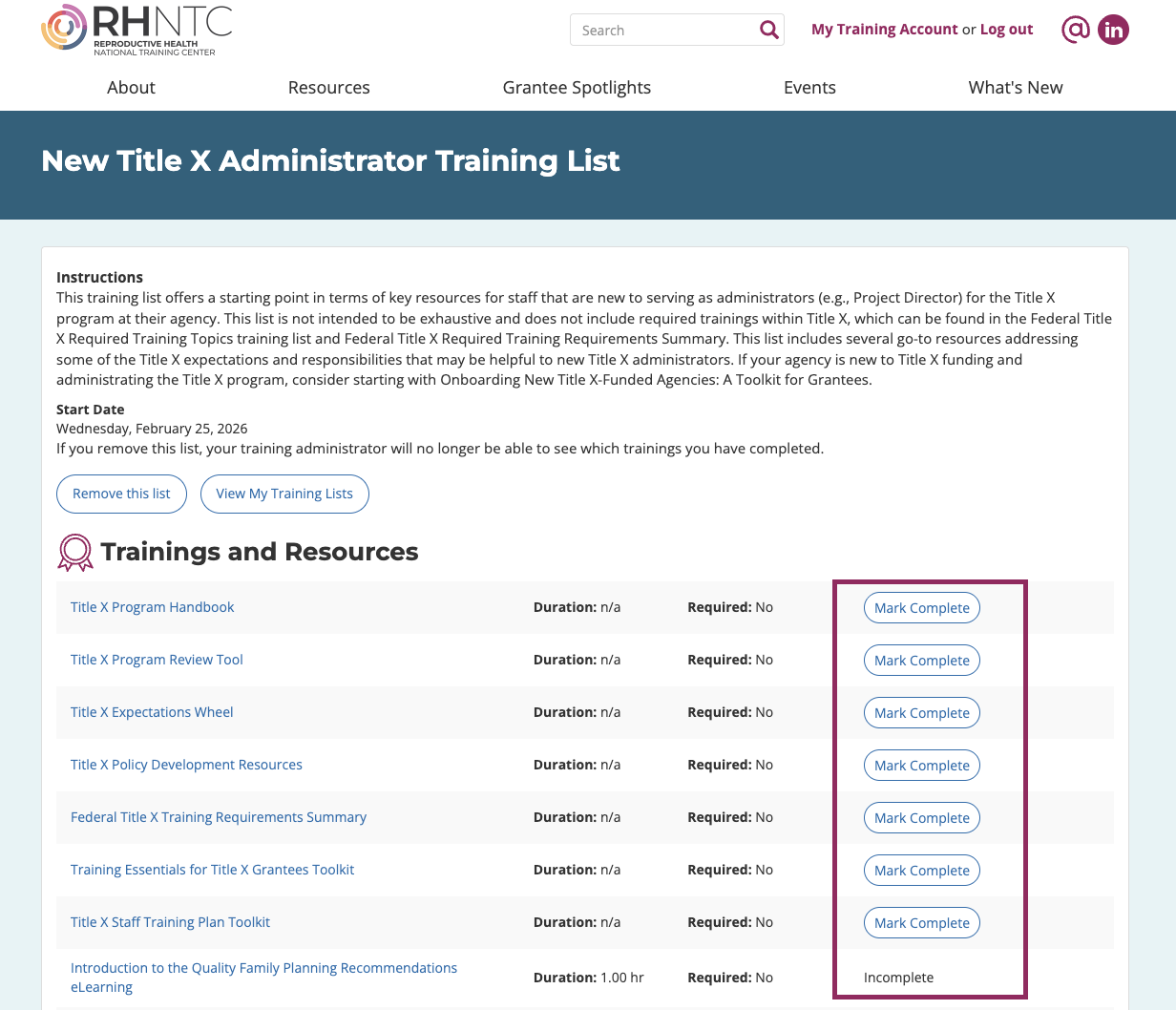
- Click an item on the training list to complete the training or view the resource. A list is fully complete when all items within it have been marked complete.
- For some items, you will need to manually click the Mark Complete button.
- For eLearning courses, your completion will be automatically recorded once you finish and fill out the evaluation. You will then receive an email with a PDF of your certificate of completion.
- The person who assigned the training list will be able to see when you have completed all items within the list.
- Click an item on the training list to complete the training or view the resource. A list is fully complete when all items within it have been marked complete.
- Download certificates of completion
Certificates of completion are available for any RHNTC eLearning course you completed while logged into your RHNTC account (as long as you also completed the post-course evaluation).
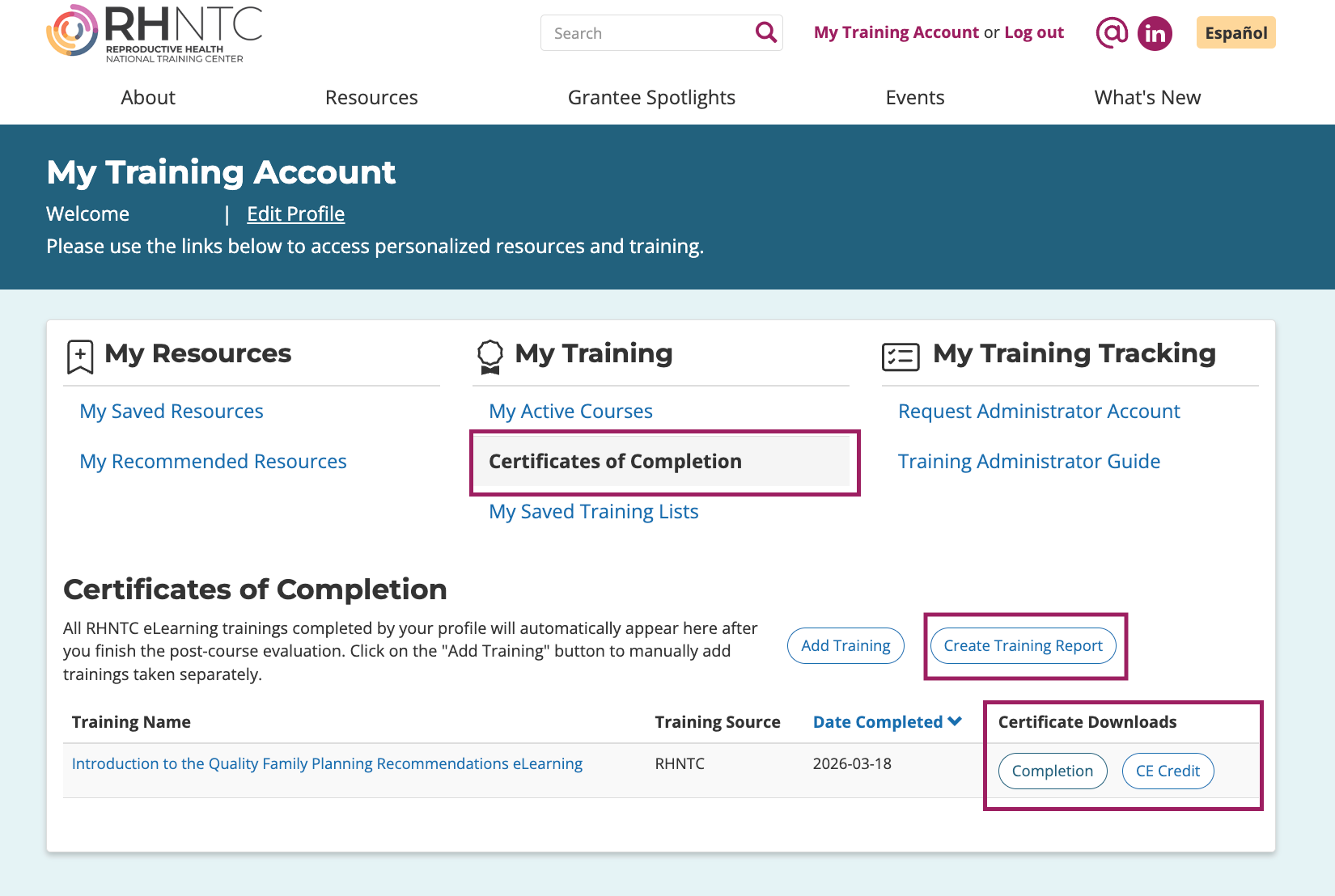
- Click the Certificates of Completion link under the My Training heading.
- Download certificates of completion and continuing education credits for training you have completed.
- If you need to compile and/or share information on a completed training (including when you completed the training), click Create Training Report to generate a PDF.